CUSTOMERCHASE DOCUMENTATION · V1.0
From waiting to follow-up.
A practical setup guide for project administrators and service agents.
1. Prepare your service project
CustomerChase is for Jira Service Management Cloud. A site administrator installs the app. A project administrator then opens Project settings → Apps → CustomerChase. Use a sandbox before enabling automation in a live service project.
2. Create your business calendar
Open Calendars, choose New calendar, enter an IANA time zone such as Europe/Madrid, choose working weekdays and the local reminder time, and add holidays as YYYY-MM-DD dates. Optional start/end dates bound the calendar.
Day zero uses the cycle start instant if it is a working day. Later delays exclude the starting day, skip non-working days and run at the calendar’s local time. Daylight saving changes are resolved in the selected time zone.
3. Write a public reminder
In Templates, create a plain-text message. Use these variables:
{{issue.key}}and{{issue.summary}}{{customer.displayName}}and{{agent.displayName}}{{step.number}}and{{remainingBusinessDays}}
Messages are public JSM comments and may trigger the site’s customer notifications. Do not put confidential internal information in templates.
4. Build a policy
- Scope: name the policy and optionally filter request types, priorities, excluded labels or organization IDs.
- Waiting statuses: select the actual workflow statuses that mean waiting for a customer. Select how later re-entry starts a new cycle.
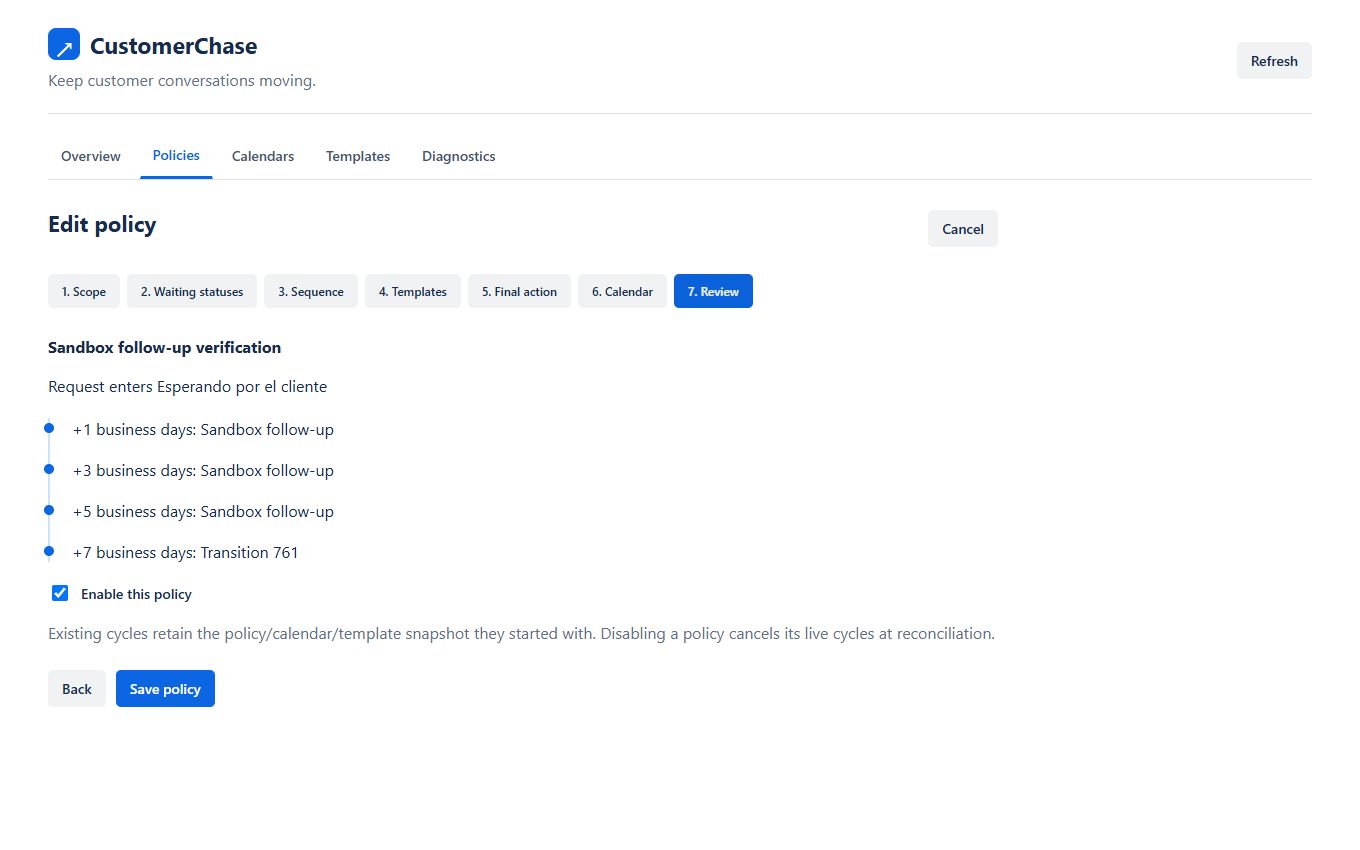
- Sequence: add reminders with increasing cumulative business-day delays. A typical sequence is day 1, day 3 and day 5.
- Templates: assign a public-comment template to each reminder.
- Final action: optionally choose an available JSM customer transition from a sample request, with a later cumulative delay. The app never guesses a replacement transition.
- Calendar: select the business calendar.
- Review: check the timeline, enable the policy and save.
Priority is request type + priority, request type only, priority only, then project default. Conflicting policies at equal specificity are rejected.
5. Check an actual request
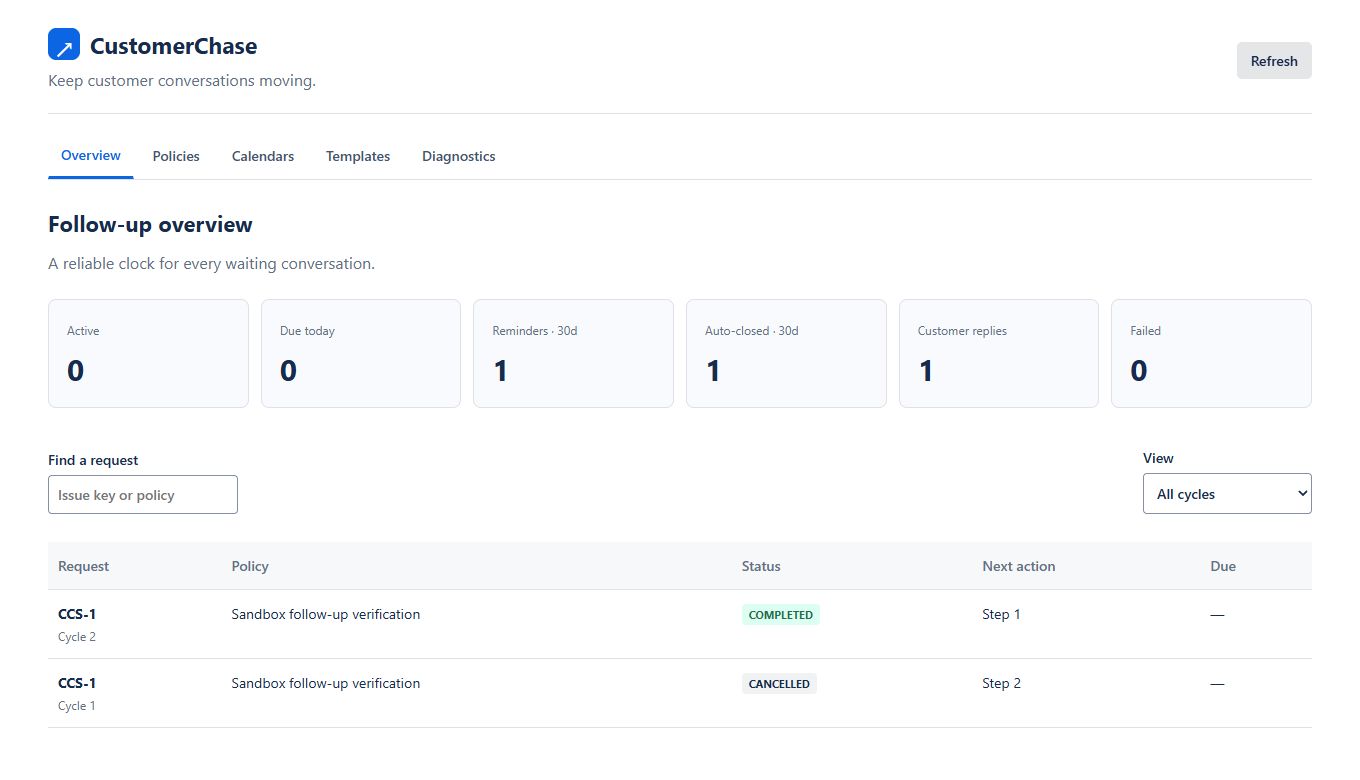
Move a sandbox request into the configured waiting status. Open its CustomerChase issue panel to see the cycle, start time, next step, due time and history. The queue-side CustomerChase Dashboard summarizes activity.
The scheduler checks due work approximately every five minutes. Queue delivery and Jira availability can introduce additional delay. The scanner processes up to 100 due cycles per run; large backlogs take longer.
Agent controls and reply handling
- Pause: suspends actions without resetting the clock.
- Resume: keeps the original deadlines; an overdue action can run shortly afterwards.
- Cancel: ends the current cycle and preserves its history.
- Restart: explicitly starts a new cycle at the current time if a policy matches.
A new public reply from the reporter or a request participant cancels an active or paused cycle. Internal notes, application comments and edits to a comment originally written before the cycle do not count as a new customer reply. Leaving the configured scope also cancels the cycle.
Changes and troubleshooting
Cycles retain snapshots of their original policy, calendar and templates. Editing configuration affects new cycles. Disabling a policy cancels its live cycles when they are next reconciled.
Open Diagnostics for failed actions. Correct missing permissions or transition configuration before retrying. An uncertain Jira outcome is handled conservatively: Reconcile searches for evidence of completion without blindly resending. Contact support if it cannot prove the outcome.
Views respect Jira project and issue-security permissions. Configuration requires project administrator access; operational controls require JSM agent access. An active licence is required for production operations.
See the app in a real sandbox
These captures show the working development installation using synthetic test requests. They are product screenshots, not customer results or interface mockups.